About
A gift card in Shopify is a store credit that customers can purchase or receive as a reward. Each gift card has a unique code and a monetary balance that can be applied at checkout. Gift cards are a great way to drive sales, attract new customers, and offer flexible gifting options for your store.
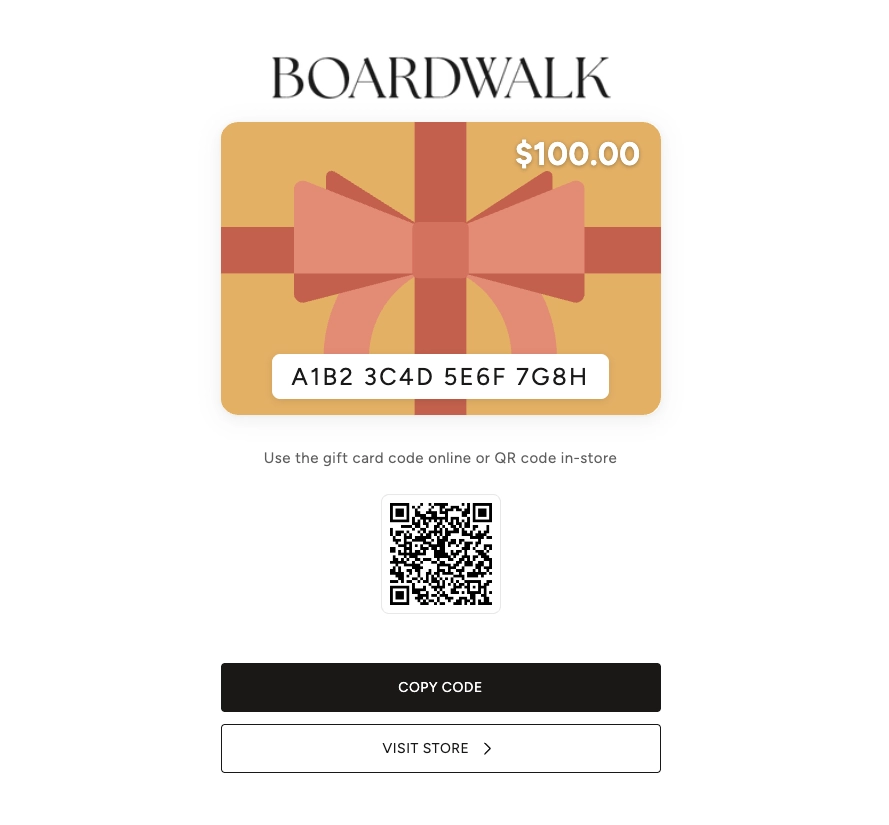
In the Boardwalk theme, the Gift Card template is a standalone page that customers see after purchasing or receiving a gift card. It displays your store logo or name, a visual card graphic showing the balance and unique code, an expiry notice (if applicable), a scannable QR code for in-store redemption, and action buttons to copy the code or visit your store. On Apple devices, customers can also save the gift card directly to their Apple Wallet.
Note: The Gift Card template is not a theme section or block. It does not appear in the Theme Editor and has no customizable settings. Its layout and styling are built into the theme and automatically adapt to your store's logo, colors, and typography settings.
How to Set Up Gift Cards in Shopify
Follow these steps to enable gift cards and start offering them in your store.
Enable Gift Cards in Shopify
Gift cards are available on all Shopify plans. In your
Shopify admin, go to
Products → Gift cards to access the gift
card management area. If this is your first time, Shopify
may prompt you to enable the feature.
Create a Gift Card Product
Go to Products → Gift cards and click
Add gift card product. Set a title (e.g.,
"Store Gift Card"), add a description, and define the
available denominations (e.g., $25, $50, $100). You can
also upload a custom product image that customers will see
while browsing your store.
Set Up Your Store Logo
The gift card page displays your store logo above the card
graphic. To set this up, go to
Online Store → Themes → Customize,
then open Theme settings → Logo and
upload your dark logo. If no logo is uploaded, your store
name will be displayed instead.
Note: The gift card template
specifically uses the dark logo from
your theme settings. Make sure you have uploaded a logo
under
Theme settings → Logo → Dark logo
for it to appear on the gift card page.
Issue or Sell Gift Cards
You can sell gift cards through your online store like any
other product. You can also issue gift cards directly to
customers from the Shopify admin by going to
Products → Gift cards and clicking
Issue gift card. Enter the value and the
recipient's email address, and Shopify will send them the
gift card page automatically.
Set an Expiry Date (Optional)
By default, gift cards do not expire. If you want to set
an expiration, go to
Settings → Gift cards
and configure your expiry preferences. When a gift card
has an expiry date, it will be displayed on the gift card
page. Expired or disabled cards show a clear warning
notice.
Notice: Some regions have laws that restrict or prohibit gift card expiry dates. Check your local regulations before setting an expiration policy.
Preview the Gift Card Page
To see how the gift card page looks, issue a test gift
card to your own email from
Products → Gift cards → Issue gift card. Open the link in the email to preview the full gift
card experience, including the card visual, QR code, and
action buttons.
What's Included on the Gift Card Page
The Boardwalk gift card template automatically displays the following elements to your customers. These are built into the template and do not require any configuration.
Gift Card Page Elements
Displays your dark logo from theme settings at the top of the page. If no dark logo is uploaded, your store name is shown in your theme's primary heading font instead.
A card-shaped graphic with a 3:2 aspect ratio, rounded corners, and a soft drop shadow. It uses Shopify's built-in gift card artwork as the background image.
The gift card's current balance is shown in the top-right corner of the card visual in large, bold white text. This updates to reflect the remaining balance after any partial redemptions.
The unique redemption code appears on a white pill overlay at the bottom of the card visual. The code is formatted with spacing for easy reading and is fully selectable for manual copying.
If the gift card has an expiry date, it is displayed below the card visual. Expired or disabled gift cards show a prominent red warning notice so the customer immediately knows the card cannot be used.
A scannable QR code is generated directly on the page without needing any external services. Customers can use this for in-store redemption by having the QR code scanned at checkout.
A primary action button that copies the gift card code to the customer's clipboard with one click. The button text changes to "Copied!" and a brief confirmation message appears to confirm the action was successful.
A secondary button that links directly to your store's homepage, making it easy for the gift card recipient to start shopping right away.
When a customer views the gift card on an Apple device, an "Add to Apple Wallet" button appears automatically. This lets them save the gift card pass for quick access on their iPhone or Apple Watch.
Important Admin Notes
Keep these details in mind when working with gift cards in your Shopify store.
Things to Know
The gift card template is a standalone page that does not appear in the Shopify Theme Editor. You cannot add sections, blocks, or settings to this page through the visual editor.
The gift card page automatically uses your theme's settings for colors, fonts, and button styles. Changes to your theme's color schemes, typography, and button appearance will be reflected on the gift card page.
Upload a dark logo in
Theme settings → Logo → Dark logo
for it to display on the gift card page. This is
separate from your main site logo and is designed for
use on light-background pages like the gift card.
Some regions have laws that restrict or prohibit gift
card expiry dates. Check your local regulations before
setting an expiration policy in
Settings → Gift cards.
You can issue a $0.00 gift card to your own email for
testing purposes. This lets you preview the full gift
card experience without creating a real balance. Disable
or delete the test card afterward from
Products → Gift cards.
Frequently Asked Questions
Online Store → Themes → Customize →
                          Theme settings → Logo
and make sure you've uploaded an image in the
Dark logo field. If no dark logo is
set, your store name will be displayed as text instead.