About
An announcement bar is a narrow banner that appears at the very top of your store, above the header. It's one of the first things visitors see and is commonly used to highlight promotions, free shipping thresholds, new arrivals, discount codes, or any time-sensitive information you want every customer to notice.
In the Boardwalk theme, the Announcement Bar section supports multiple rotating messages that automatically cycle through on a timer. You can add up to 7 announcements, including a special countdown timer block for limited-time offers. Navigation dots let visitors jump between messages, and the bar fully supports your theme's color schemes for a seamless look.



How to set up the Announcement Bar
Follow these steps to add and configure your announcement bar in the Boardwalk theme.
Open the Theme Editor
In your Shopify admin, go to
Online Store → Themes, find Boardwalk, and
click Customize. The Announcement Bar section
is typically already included in the Header group at the top
of the page.
Add Announcement Blocks
Click the Announcement bar section in the sidebar to expand it. Click Add block and choose either Announcement for a simple text message or Announcement timer for a countdown. You can add up to 7 blocks total.
Write Your Announcement Messages
Click each announcement block and enter your message using the rich text editor. You can add links, bold text, and other formatting directly in the text field. For countdown timer blocks, enter a main heading and optional subtext alongside the target date and time.
Configure Section Settings
Click the top-level Announcement bar section to access its settings. Choose your color scheme, font size, autoplay speed, dot visibility, and spacing. These settings apply to all announcements within the section.
Reorder Your Announcements
Drag and drop the blocks in the sidebar to change the order in which announcements appear. The first block in the list will be the message visitors see first when they arrive on your store.
Save and Preview
Click Save in the Theme Editor. Preview your store to verify the announcements rotate correctly and that the countdown timer (if used) displays the right target date.
Section-Level Settings
These settings apply to the entire Announcement Bar section and are accessible by clicking the top-level section in the Theme Editor sidebar.
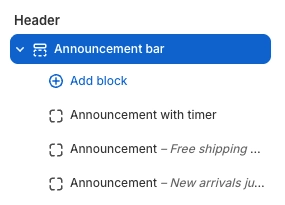
Announcement Bar Settings
Select any defined color scheme to style the announcement bar background and text colors.
Adds a thin border line at the bottom of the announcement bar to visually separate it from the header below.
Controls the text size for all announcements. Range: 12px to 24px. The font size automatically scales down slightly on mobile devices.
How many seconds each announcement is displayed before rotating to the next one. Range: 3 to 15 seconds. This only applies when you have more than one announcement block.
Displays clickable navigation dots that let visitors jump between announcements. Dots are automatically hidden when only one announcement exists.
Sets the color of the active navigation dot. Inactive dots appear as a faded version of this color.
Top padding for the announcement bar content. Range: 0px to 20px.
Bottom padding for the announcement bar content. Range: 0px to 20px.
Blocks
The Announcement Bar supports two types of blocks. You can mix and match them in any order, up to a maximum of 7 blocks total.
Announcement
A simple text announcement. Use the rich text editor to write your message, add links, or apply bold and italic formatting. Great for promotions, shipping info, discount codes, or any general store message.
- Text — Rich text editor with support for links, bold, and italic formatting
Announcement Timer
A countdown announcement that displays a live timer counting down to a specific date and time. The timer shows days, hours, minutes, and seconds, and updates in real time. Perfect for flash sales, product launches, and limited-time offers.
- Main text — Bold heading text displayed to the left of the countdown (e.g., "SEASONAL SALE")
- Sub text — Smaller text shown below the main heading (e.g., "UP TO 50% OFF · ENDS IN")
- Year — The target year for the countdown (2026–2030)
- Month — The target month (January through December)
- Day — The target day of the month (1–31)
- Time — The target time in 30-minute increments (12:00 AM through 11:30 PM)
- Time zone — Select from a wide range of global time zones to ensure the countdown is accurate for your audience
- Daylight saving time — Enable this if your selected time zone currently observes daylight saving time, which shifts the countdown by one hour to stay accurate
- Demo mode — Keeps the timer running with sample values in the Theme Editor so you can preview the countdown design without setting a real end date
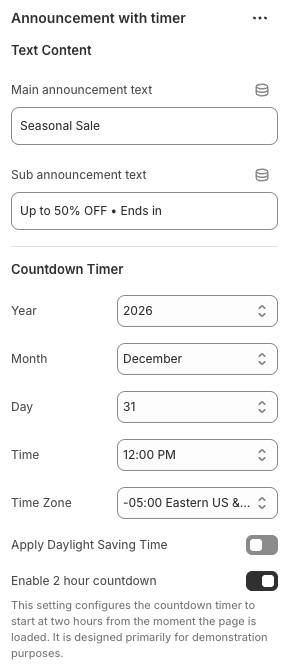
Built-In Features
The Announcement Bar comes with several features that work automatically — no apps or custom code needed.
Feature Overview
When you add more than one announcement, the bar automatically cycles through each message on a timer. Messages transition with a smooth fade animation.
The slideshow automatically pauses when a visitor hovers over the announcement bar, giving them time to read the current message. It resumes when they move their cursor away.
Clickable dot indicators let visitors jump directly to any announcement. The active dot is highlighted, and dots are automatically hidden when only one announcement exists.
The Announcement Timer block counts down in real time, updating every second. It displays days, hours, minutes, and seconds remaining until your specified end date.
On mobile devices, the announcement bar rearranges automatically. The navigation dots move below the message content, and font sizes scale down for smaller screens.
The bar automatically adjusts its height to match the tallest announcement message, preventing layout shifts as announcements rotate.
For visitors who prefer reduced motion in their browser settings, slide animations are simplified to gentle fades with no movement, ensuring accessibility for all users.
Admin Steps and Requirements
Keep these points in mind when setting up your announcement bar.
Before You Begin
You can add up to 7 announcement blocks in a single Announcement Bar section. If you need fewer distractions, use just one block — the navigation dots and slideshow will be hidden automatically.
The Announcement Timer counts down to a specific date and time in the time zone you select. Make sure you choose the correct time zone for your sale or event. If your region observes daylight saving time, enable the Daylight saving time toggle to keep the countdown accurate.
To make an announcement clickable, highlight the text you want to link in the rich text editor and use the link tool to add a URL. Links are underlined automatically and the underline is removed on hover.
The Announcement Bar uses your theme's color schemes. To create or modify a color scheme, go to Theme settings → Colors in the Theme Editor. Choose a scheme with good contrast so your announcement text is easy to read.
When editing in the Theme Editor, clicking an announcement block in the sidebar will jump the preview to that specific announcement and pause the autoplay. Autoplay resumes when you deselect the block. Use Demo mode on countdown timer blocks to preview the timer design without needing a real end date.