About
Shoppable videos combine product discovery with engaging video content. Instead of browsing a traditional product grid, your customers watch short product videos and can instantly view and purchase featured items — all without leaving the page. It's a format inspired by the short-form video experience that shoppers already love on social media.
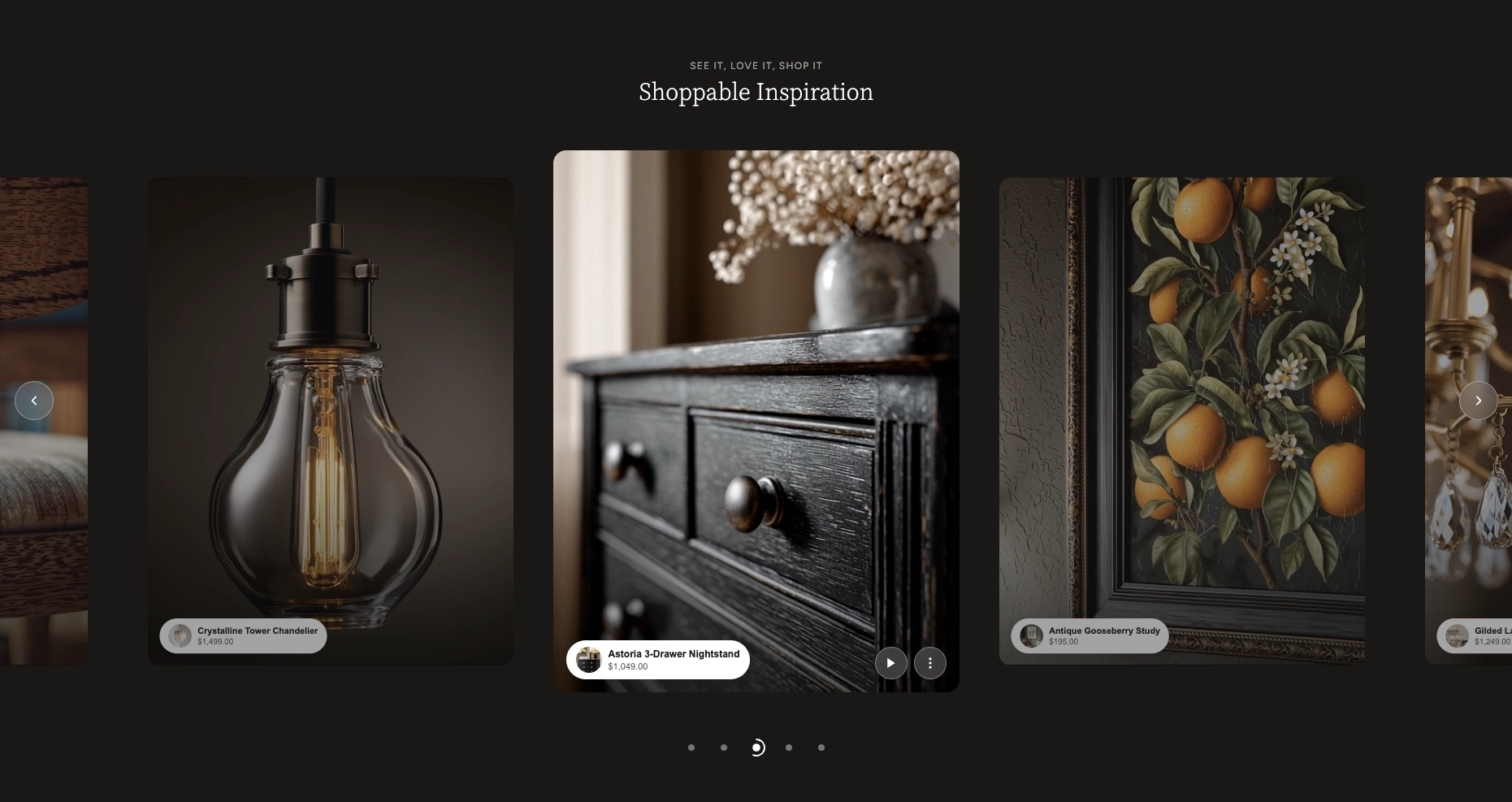
In the Boardwalk theme, the Shoppable Videos section displays a horizontally scrolling carousel of video cards. Each video card can contain timed product hotspots that appear and disappear at specific moments during playback. When a customer taps a hotspot, a quick-view popup opens showing the product image, price, stock status, and an Add to Cart button. The carousel includes optional autoplay, auto-advance, arrow navigation, and animated progress dots.
How to Set Up Shoppable Videos
Follow these steps to add and configure shoppable videos on your store using the Boardwalk theme.
Upload Your Videos to Shopify
In your Shopify admin, go to
Content → Files and upload the video
files you want to use. Shopify supports MP4 and MOV
formats. You can also upload videos directly through the
Theme Editor when setting up each video block.
Alternatively, you can provide a direct URL to a hosted
video file.
Open the Theme Editor
Navigate to Online Store → Themes, find
Boardwalk, and click Customize. Select
the page where you'd like to add the section (e.g., your
homepage).
Add the Shoppable Videos Section
Click Add section in the left sidebar and search for Shoppable Videos. The section will appear with a heading group and three empty video blocks by default.
Assign Videos to Each Card
Expand the video group in the sidebar and click on each Shoppable Video block. Use the video picker to select a Shopify-hosted video, or paste a direct URL to an externally hosted MP4 file.
Add Product Hotspots
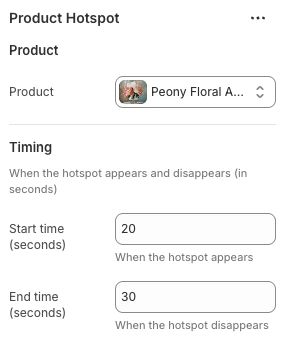
Inside each video block, click Add block and choose Product Hotspot. Select the product you want to feature, then set the start and end times (in seconds) to control when the hotspot appears and disappears during the video. You can add multiple hotspots per video to feature different products at different moments.
Configure Section Settings
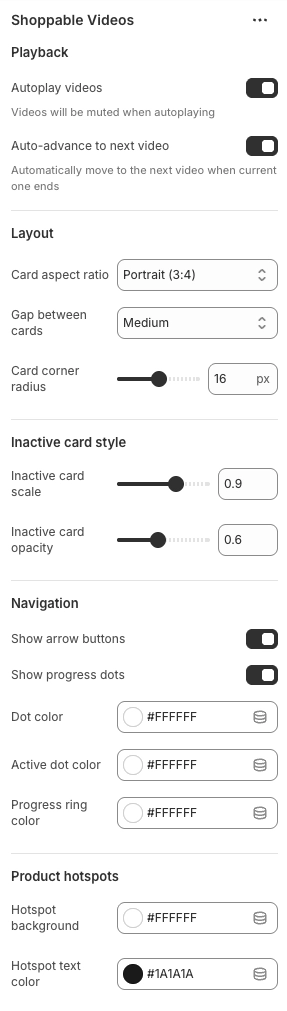
Click the top-level Shoppable Videos section in the sidebar to access playback options, card layout, navigation controls, hotspot styling, and color scheme settings.
Save and Preview
Click Save in the Theme Editor. Preview your page to verify video playback, hotspot timing, and the quick-view popup are working as expected.
Section-Level Settings
These settings apply to the entire Shoppable Videos section and are accessible by clicking the top-level section in the Theme Editor sidebar.
Playback
When enabled, the active video begins playing automatically when the section loads. Videos are always muted during autoplay. Customers can unmute from the options menu.
Automatically scrolls to the next video card and starts playing it when the current video finishes.
Layout
Controls the shape of each video card. Options:
Portrait (9:16),
Portrait (3:4), Square (1:1),
Landscape (4:3), or
Landscape (16:9).
Spacing between video cards in the carousel. Options:
None, Small,
Medium, or Large.
Rounds the corners of each video card. Range: 0px to 32px.
Inactive Card Style
Shrinks cards that aren't currently active so the centered card stands out. Range: 0.7 to 1.0 (where 1.0 means no scaling).
Dims cards that aren't currently active. Range: 0.3 to 1.0 (where 1.0 means fully opaque).
Navigation
Displays left and right arrow buttons on either side of the carousel for manual navigation. Arrows only appear when there are two or more videos.
Displays navigation dots below the carousel. The active dot includes an animated ring that shows video playback progress.
The color of inactive navigation dots.
The color of the currently active navigation dot.
The color of the animated ring around the active dot that tracks video playback progress.
Product Hotspots
Background color for the product hotspot pill that appears over the video.
Text and icon color for the product name and price inside the hotspot pill.
Padding & Appearance
Top and bottom padding for the entire section. Range: 0px to 100px.
Select any defined color scheme to style the section background and text.
Blocks
The Shoppable Videos section uses a nested block structure. A Heading Group sits at the top for your section title, followed by a Video Group that holds the individual video cards. Each video card can contain product hotspot blocks.
Heading Group
A standard content group block positioned above the video carousel. Use it to add a subtitle, title, or any combination of text blocks. You can style the heading group with alignment, gap, and padding settings just like any other group block in the theme.
Video Group
The container that holds all your video cards and manages the horizontal carousel track. This block is automatically added when you create the section and you do not need to configure it directly.
Shoppable Video
An individual video card in the carousel. Each card displays a video player with play/pause controls and an options menu. Add as many video blocks as you need inside the Video Group.
- Video — Select a video from Shopify's file library (MP4 or MOV). The video's preview image is used as the poster frame.
- Video URL — Alternatively, paste a direct URL to an externally hosted MP4 file. This field is ignored if a Shopify-hosted video is selected above.
Product Hotspot
A timed product tag that appears over the video during playback. When tapped, it opens a quick-view popup where customers can see product details and add the item to their cart. The hotspot displays the product's thumbnail image, title, and price. For products with multiple variants, a "From" price is shown automatically.
- Product — Choose the product to feature from your store catalog.
- Start time (seconds) — The moment in the video when the hotspot fades into view.
- End time (seconds) — The moment in the video when the hotspot fades out.
Tip: You can add multiple hotspots to a single video. Stagger the start and end times so each product appears at a different point in the video for a smooth showcase experience.
Built-In Features
The Shoppable Videos section includes interactive features that work automatically — no apps or custom code needed.
Feature Overview
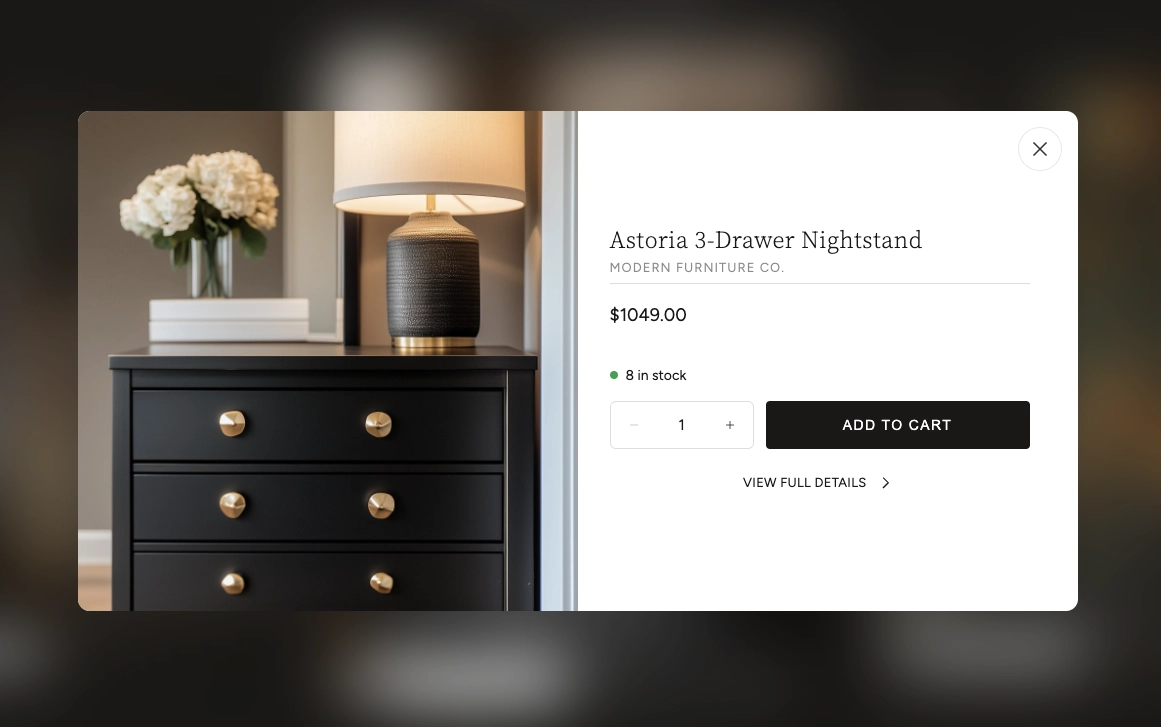
When a customer taps a product hotspot, a modal opens showing the product image, title, vendor, price, stock availability, a quantity selector, and an Add to Cart button. A "View Full Details" link takes them to the full product page. The popup loads without a full page reload.
Product hotspots fade in and out at the exact start and end times you set. When a hotspot first appears, it plays a brief pulse animation to draw attention.
The active video card is always centered on screen with neighboring cards peeking in from the sides. Inactive cards are visually de-emphasized using your chosen scale and opacity settings.
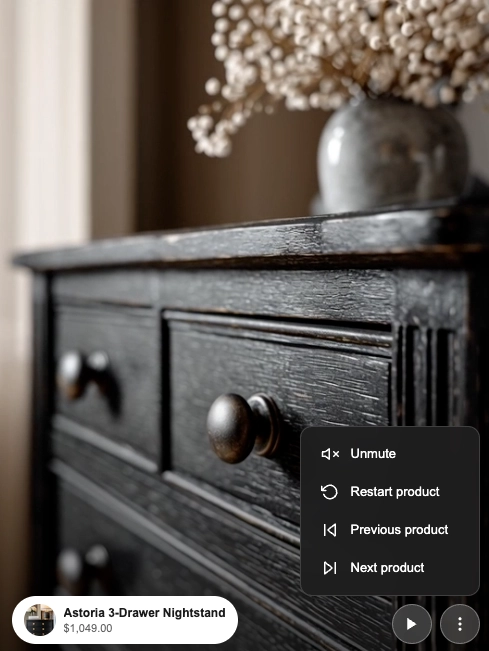
Each video card has a three-dot menu with options to unmute or mute audio, restart the current product hotspot, and skip to the previous or next product. The product navigation options only appear when a video has hotspots assigned.
When progress dots are enabled, the active dot displays an animated ring that fills as the current video plays. This gives customers a visual cue of how much of the video remains.
Customers can use the left and right arrow keys to navigate between videos, improving accessibility for keyboard users.
When you select a video or hotspot block in the Theme Editor, the carousel automatically scrolls to that video and pauses playback so you can fine-tune your settings without interruption.
Before You Begin
A few things to keep in mind when setting up your shoppable videos.
Before You Begin
Videos must be uploaded to Shopify before you can select them in the Theme Editor. Go to Content → Files in your Shopify admin to upload MP4 or MOV files. Alternatively, you can upload directly through the video picker in the Theme Editor.
Product hotspots only display for products that have an Active status in your Shopify admin. If a product is set to Draft or Archived, its hotspot will not appear on the storefront.
Modern browsers require videos to be muted for autoplay to work. Your videos will start silently, and customers can unmute using the options menu on each video card. Once a customer unmutes, all subsequent videos will play with audio.
Start and end times are set in seconds. To find the right timing, play your video and note the timestamps where you want each product to appear. If you leave the end time at a very high number, the hotspot will remain visible until the video ends.
The video URL field accepts direct links to MP4 files only. YouTube and Vimeo links are not supported — use Shopify-hosted videos or a direct file URL from your own hosting instead.
When a customer taps a product hotspot, the video automatically pauses and the quick-view popup opens. This ensures the customer can browse the product without missing the video content.