About
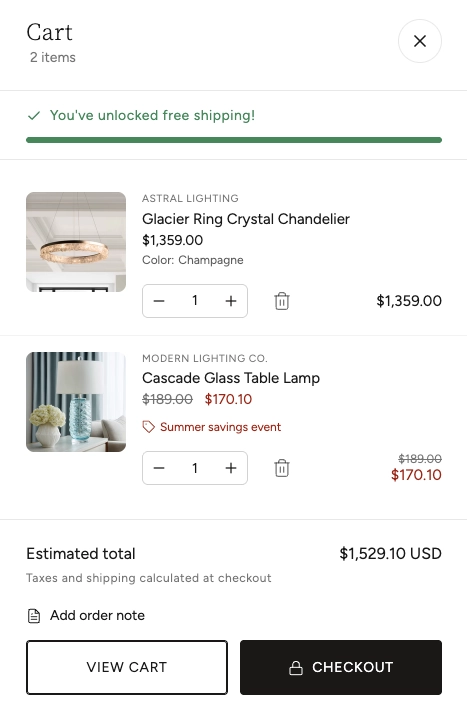
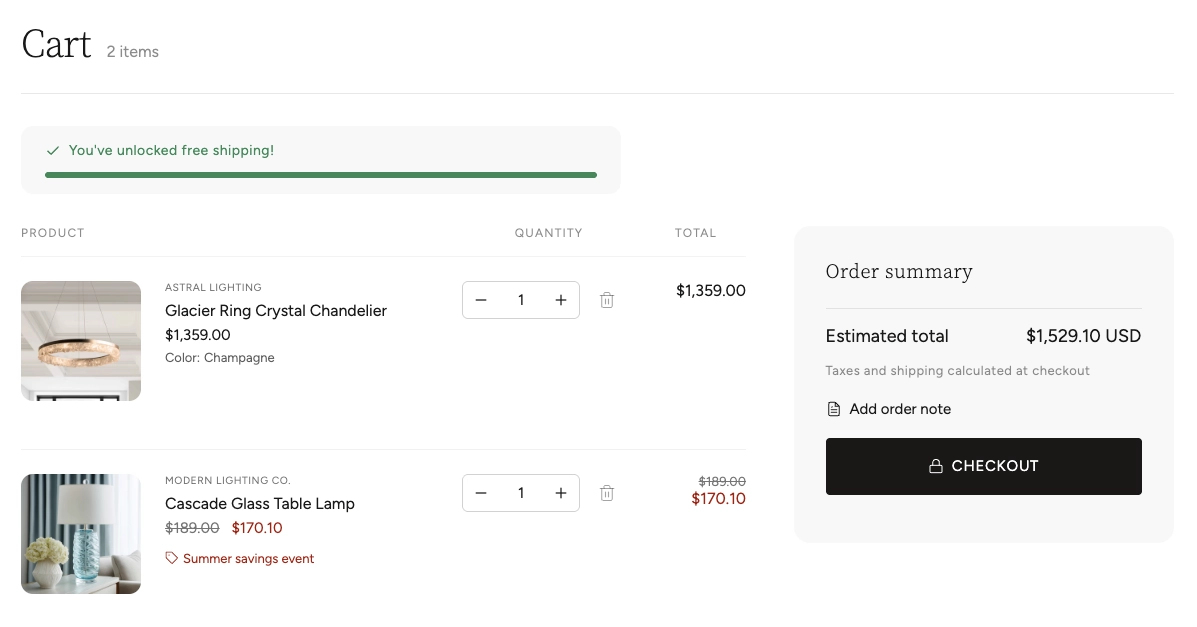
The cart is where customers review the items they want to buy before proceeding to checkout. In the Boardwalk theme, the cart experience includes both a cart drawer (a slide-out panel) and a dedicated cart page. Together, they give customers a convenient way to review, adjust, and finalize their orders.
The Cart theme settings control global cart behaviors that apply to both the cart drawer and the cart page. These include whether the cart drawer opens automatically after adding an item, a free shipping progress bar to encourage larger orders, and an optional gift wrapping feature. Additional display options — like drawer size, vendor names, order notes, and empty cart appearance — are configured on the Cart Drawer section itself.
How to Configure Cart Settings
Follow these steps to set up cart behavior, free shipping progress, and gift wrapping for your store.
Open Theme Settings
In your Shopify admin, go to
Online Store → Themes, find Boardwalk,
and click Customize. In the Theme
Editor, click the gear icon (⚙) in the
left sidebar to open Theme settings.
Navigate to Cart
Inside Theme settings, click on Cart. You'll see settings grouped under three headings: Behavior, Free shipping, and Gift wrapping.
Configure Cart Behavior
Under Behavior, toggle Open cart drawer when item is added on or off. When enabled, the cart drawer automatically slides open every time a customer adds a product to their cart, giving them instant visual confirmation and the option to proceed to checkout.
Set Up Free Shipping Progress (Optional)
Under Free shipping, enable Show free shipping progress to display a progress bar in the cart. Then set the Free shipping threshold — the minimum order value customers need to reach for free shipping. The progress bar fills up as items are added, showing customers how close they are to qualifying. Set the threshold to 0 to disable the progress bar.
Note: The free shipping progress
bar is a visual motivator only — it does not
automatically apply free shipping at checkout. You
still need to configure your actual shipping rates
in the Shopify admin under
Settings → Shipping and delivery.
Make sure your free shipping rate threshold matches
the value you set here.
Set Up Gift Wrapping (Optional)
Under Gift wrapping, enable Enable gift wrapping to show a gift wrap checkbox in the cart drawer and cart page. Then select a Gift wrap product from your catalog.
When a customer checks the gift wrap box, the selected product is automatically added to their cart with a quantity that matches the number of items in their order. Unchecking the box removes it.
Note: You need to create a product
in your Shopify admin to represent your gift
wrapping service before you can select it here. For
example, create a product called "Gift Wrapping"
with your desired price (e.g., $5.00). Go to
Products → Add product in the
Shopify admin and set it up like any other product.
The theme will use the first available variant of
the product you select.
Save and Preview
Click Save in the Theme Editor. Add a product to your cart from your storefront to test the cart drawer behavior, verify the free shipping progress bar (if enabled), and confirm that the gift wrap checkbox appears and works correctly.
Settings Reference
These settings are found under Theme settings → Cart in the Theme Editor.
Behavior
When enabled, the cart drawer automatically slides open after a customer adds a product to their cart. This provides immediate visual confirmation and lets customers review their cart or continue shopping without manually opening the cart.
Free Shipping
When enabled, a progress bar appears in the cart drawer and cart page showing customers how close their order total is to qualifying for free shipping. The bar fills up as they add more items.
The minimum order value customers need to reach to see the progress bar as complete. Range: $0 to $500 (in $10 increments). Set to $0 to disable the progress bar. This value should match the free shipping rate you've configured in your Shopify shipping settings.
Gift Wrapping
When enabled, a gift wrap checkbox appears in the cart drawer and cart page. When a customer checks the box, the selected gift wrap product is automatically added to their cart with a quantity matching the number of items in their order. Unchecking the box removes it.
Select the product that represents your gift wrapping service. This should be a product you've created in your Shopify admin (e.g., "Gift Wrapping — $5.00"). The theme uses the first available variant of the selected product. This product is automatically added or removed from the cart when customers toggle the gift wrap checkbox.
Cart Drawer vs. Cart Page
Boardwalk provides two cart experiences. The settings on this page apply to both, but each also has its own additional options.
Cart Drawer
The cart drawer is a slide-out panel that appears from the side of the screen. It lets customers review their cart without leaving the page they're on. The drawer is a separate section in the Theme Editor with its own settings for drawer size, color scheme, vendor display, variant options, order note field, tax info, and empty cart appearance. These are configured by clicking the Cart Drawer section in the Theme Editor sidebar.
Cart Page
The cart page is a full, dedicated page at
/cart that shows all cart items in a
traditional page layout. The cart page section has its
own settings for the order note field and empty cart
button link. Both the cart drawer and cart page share
the global behavior, free shipping, and gift wrapping
settings configured here.
Important Notes
Keep these details in mind when working with cart settings.
Things to Know
The free shipping progress bar is a visual tool to
encourage larger orders. It does not create or apply
a free shipping rate at checkout. You must configure
your actual shipping rates in the Shopify admin under
Settings → Shipping and delivery.
Make sure the threshold here matches your shipping
rate configuration.
The gift wrap product must be created in your Shopify admin before it can be selected here. Create it as a standard product with a name, price, and at least one available variant. The theme automatically adds it to the cart with a quantity equal to the total number of items, so the price you set is charged per item in the cart.
The free shipping threshold uses your store's base currency. If you sell in multiple currencies, the displayed threshold amount in the progress bar will reflect the customer's selected currency based on Shopify's currency conversion settings.
Additional cart drawer options — including drawer size, product vendor display, variant options, order note field, tax and shipping info, empty cart image, and color scheme — are found on the Cart Drawer section itself, not in these theme settings. Look for the Cart Drawer section in the Theme Editor sidebar to access those settings.
Frequently Asked Questions
Settings → Shipping and delivery.
Create a shipping rate with a price of $0 and set a
minimum order value that matches the threshold
you've configured here.
Products → Add product. Create a
product with a name like "Gift Wrapping," set the
price to your desired per-item charge (e.g., $5.00),
and make sure it has at least one variant marked as
available. You don't need to add an image, though
you can if you'd like. Once the product is created,
come back to
Theme settings → Cart and
select it in the
Gift wrap product picker.
Products → [Gift Wrap Product],
scroll to Publishing, and uncheck
Online Store. The product will
still be available to the theme's cart system but
won't appear in search results, collections, or
your catalog.