About
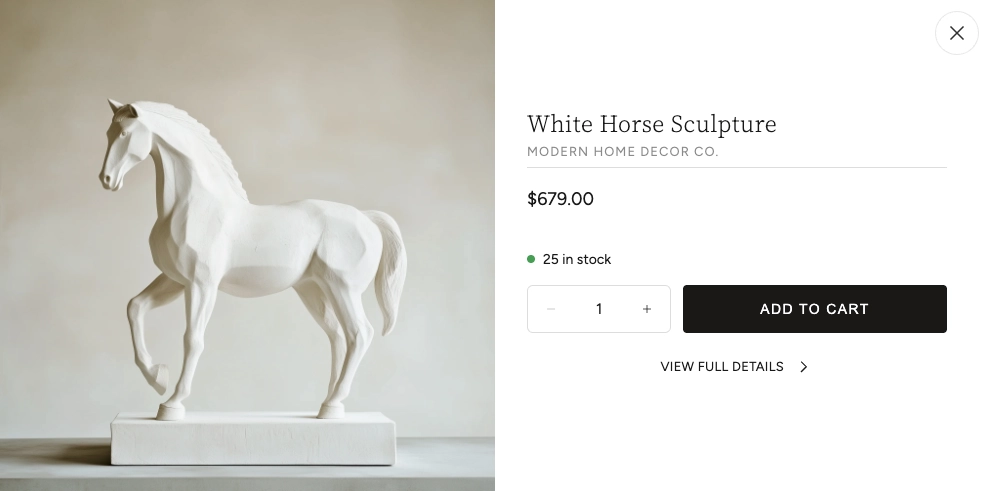
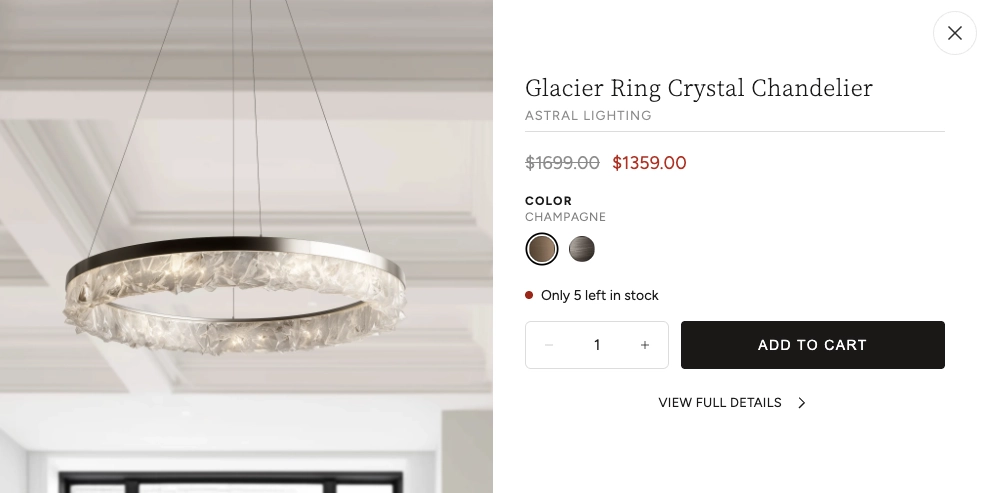
Quick View is a pop-up overlay that lets customers preview a product's key details — images, price, variants, and availability — without leaving the page they're on. It's a convenient way to browse and shop directly from product cards, collection grids, or testimonial sections. When a visitor clicks or taps on a product card, the Quick View modal opens with everything they need to make a purchase decision or add the item to their cart.
In the Boardwalk theme, the Quick View settings are found under Theme Settings and let you configure which product details appear inside the modal. These settings apply globally — every Quick View modal across your store uses the same configuration, ensuring a consistent experience no matter where customers open it from.
How to Configure Quick View
Follow these steps to customize which product details appear in the Quick View modal across your store.
Open Theme Settings
In your Shopify admin, go to
Online Store → Themes, find Boardwalk,
and click Customize. In the Theme Editor,
click the gear icon (⚙) in the left
sidebar to open Theme settings.
Navigate to Quick View
Inside Theme settings, click on Quick view. You'll see settings organized into three groups: Image, Product information, and Cart & inventory.
Choose the Image Aspect Ratio
Select the Image aspect ratio for the
product images displayed in the Quick View modal. Options
include Portrait, Square,
Landscape, and Widescreen. This
controls how the product image gallery is cropped inside
the modal.
Tip: Choose an aspect ratio that
matches how your product photos are shot. If your images
are tall and narrow, Portrait
will display them best. If they're square or shot in
landscape, choose the matching option to avoid awkward
cropping.
Configure Product Information
Under Product information, toggle Show vendor on or off. When enabled, the product's brand or vendor name appears alongside the product title in the modal. This is useful for stores that carry products from multiple brands.
Configure Cart & Inventory Options
Under Cart & inventory, toggle the Show quantity selector and Show inventory status checkboxes. The quantity selector lets customers choose how many units to add. The inventory status shows stock levels, in-stock or out-of-stock notices, and cart quantity alerts.
Note: Inventory tracking must be
enabled on your products in the Shopify admin for stock
levels to display. Go to
Products → [Product] → Inventory
and make sure
Track quantity is turned on for each
product you want to show inventory status for.
Save and Preview
Click Save in the Theme Editor. To test, navigate to any page with product cards — such as a collection page or a section with linked products — and click on a product image to open the Quick View modal. Verify that the image ratio, vendor, quantity selector, and inventory status are displaying as expected.
Settings Reference
These settings are found under Theme settings → Quick view in the Theme Editor. They configure which product details appear in the Quick View modal used throughout your theme.
Image
Controls how product images are cropped inside the Quick
View modal's image gallery. Options:
Portrait, Square,
Landscape, or Widescreen.
Choose the ratio that best matches the shape of your
product photography.
Product Information
When enabled, the product's vendor or brand name is displayed alongside the product title in the Quick View modal. Useful for multi-brand stores where customers may want to identify the manufacturer at a glance.
Cart & Inventory
When enabled, a quantity selector appears in the Quick View modal, letting customers choose how many units to add before clicking "Add to Cart." When disabled, one unit is added per click.
When enabled, the modal displays stock level information for the selected variant — including in-stock and out-of-stock notices, low stock warnings, and alerts if the requested quantity exceeds available inventory.
Built-In Features
The Quick View modal includes several features that work automatically, regardless of how you configure the settings above.
Quick View Modal Features
All product images are browsable using arrow navigation buttons. An image counter shows how many photos are available so customers can swipe through the full set.
The product name and current price are always displayed. When a product is on sale, both the original and discounted prices are shown.
If a product has multiple options (such as size or color), swatches or selection buttons appear so the customer can choose their preferred variant before adding to cart. The price and inventory status update automatically when a different variant is selected.
An Add to Cart button lets customers add the product directly to their cart without leaving the page. The button shows a loading animation followed by a checkmark confirmation when the item is successfully added.
A link at the bottom of the modal takes the customer to the full product page if they want to see the complete description, additional images, or other information not shown in the Quick View.
The Quick View modal loads product data in the background, so it opens quickly and keeps visitors on the page they were browsing. There's no page reload or navigation involved.
Where Quick View Appears
The Quick View modal is available anywhere the theme displays product cards with images. Here are the most common locations.
Common Quick View Locations
Product cards on collection pages can trigger the Quick View modal when a customer clicks or taps on the product image.
Product recommendations displayed on product pages or other sections can be previewed via Quick View without navigating away.
When a testimonial has a linked product, hovering over the product image shows a magnifying glass icon. Clicking or tapping opens the Quick View modal.
Products in the recently viewed section can be previewed via Quick View, making it easy for returning customers to revisit items they've browsed.
When using a product hotspots section, the Quick View modal can display the tagged product's details directly on the page.
Frequently Asked Questions
Portrait. If they're
wide, use Landscape or
Widescreen. Square works best
for images that are already shot at a 1:1 ratio.
Products → [Product] → Inventory
and confirm that Track quantity is
turned on. Without inventory tracking, there's no stock
data for the theme to display.