
Designing a logo with AI
Describe your business, pick from three directions, and finish with a dark version and a matching favicon.
Overview
The AI logo designer draws logos by chatting. You describe your business, it sketches three directions in seconds, it draws the one you pick in full, and you refine that in plain English until it's right. When you're happy, it makes a dark-background version and a matching favicon to go with it.
Everything it draws is a clean, scalable vector — the same kind of file a designer would hand you — kept in your Branding gallery, ready to put on your site or download and use anywhere else.
You'll find it under Presence → Branding in the side navigation. It runs on your site's AI credits, and the free Trial includes 600, so you can see what it does before choosing a plan.
Opening the logo designer
The logo designer lives in Branding, alongside the artwork you've already made.
- If you look after more than one site, switch to the one you're designing for first: in the side navigation, open Home and click Switch site. Artwork belongs to a single site.
- In the side navigation, under Presence, open Branding.
- Click New logo. The design canvas opens with the chat on the left and your logo on the right.
Each request to the designer uses some of your site's AI credits — see What a logo costs, below.
Describing your business
The designer opens with a short greeting, and the colored circles above the chat show the brand colors it's designing with — the ones set for your site, or your theme's defaults if you haven't changed them. Then it's over to you.
There's no special syntax. Write it the way you'd brief a designer — “Tidewater Yoga — a calm studio by the coast. Soft, modern, approachable.” — and press Enter to send. Three things are worth including:
- Your name, exactly as you want it set — including any capitalization or spacing that matters to you.
- What you do. A few words is plenty: a bakery, a law practice, a surf school.
- The feeling you're after — playful, classic, minimal, hand-made. Naming a style gives the designer far more to work with than a description of the business alone.
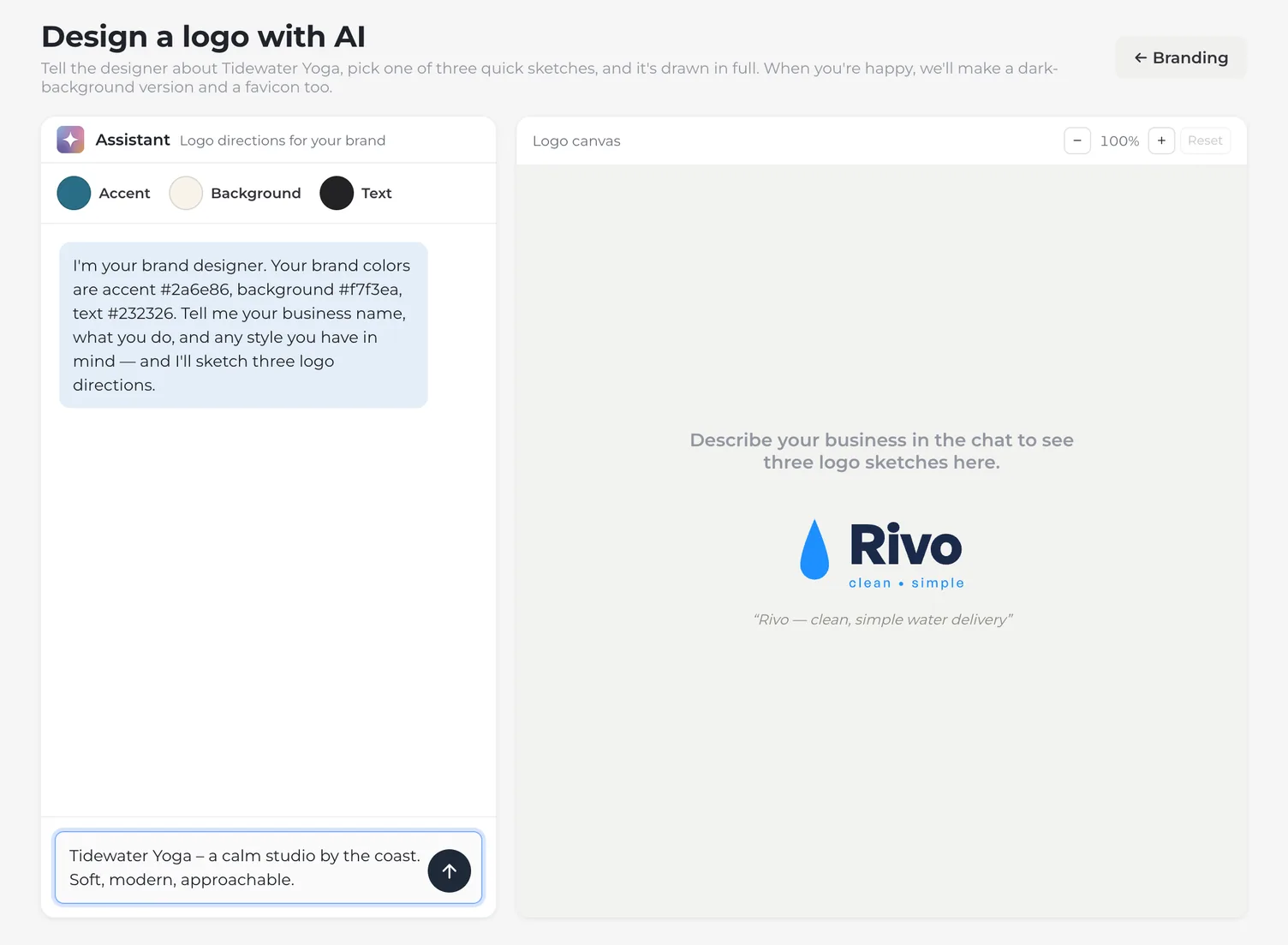
It may ask a clarifying question before it starts drawing — answer in the chat and it carries on. The palette comes from your site's brand colors, on the site's own settings page under Brand & SEO; set those first if you want it designing to different colors.
Choosing from three directions
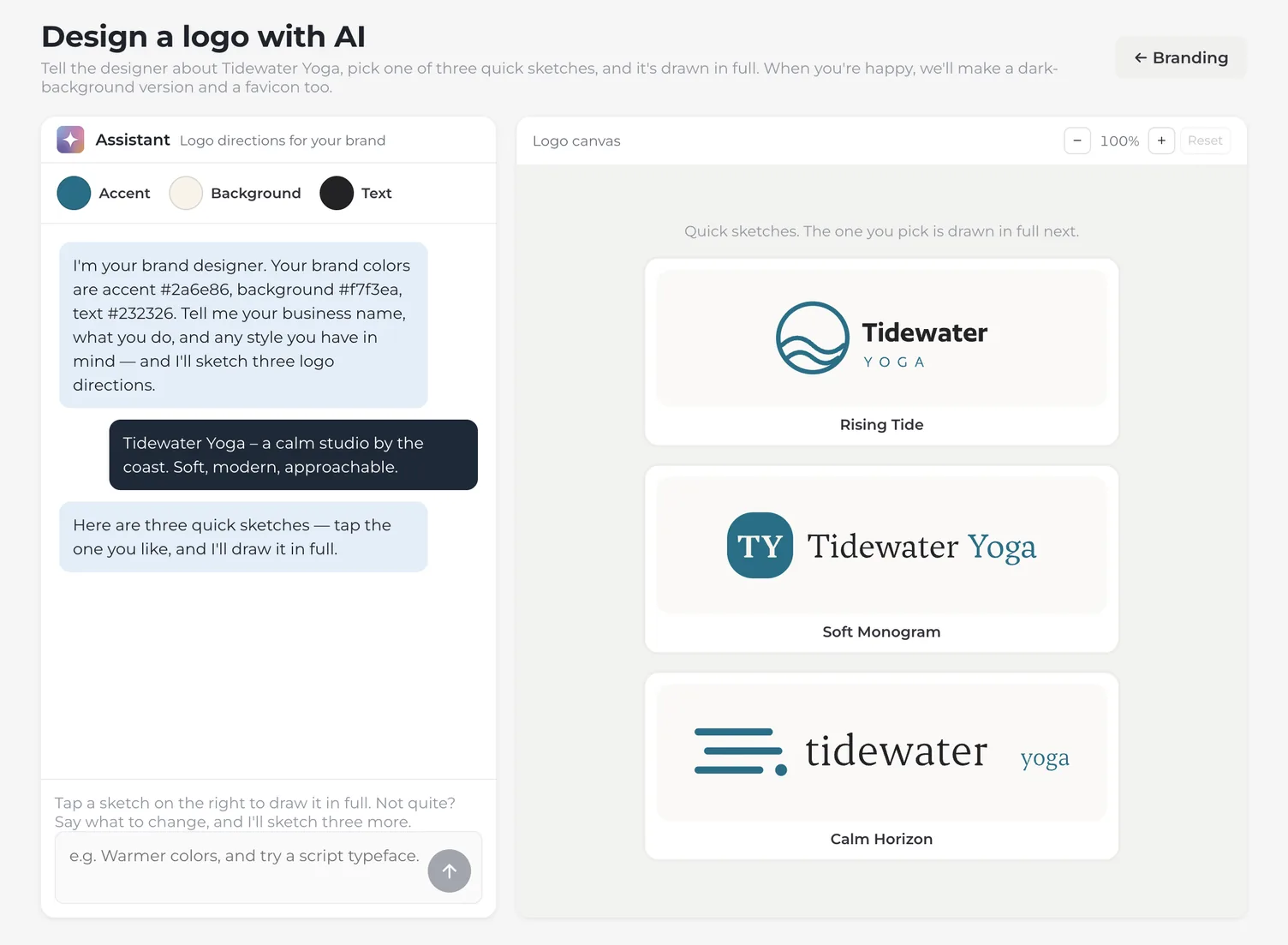
Sketching takes about 15 seconds. The chat shows you how far along it is, and three blank cards hold their places on the canvas until the sketches arrive.
When they're ready, all three appear on the canvas. They're quick sketches, deliberately different from one another, so pick the one whose direction feels right rather than waiting for one to be perfect — the one you pick is drawn in full next, usually in under a minute, and refining comes after that.
- Compare the three on the canvas. The zoom controls at the top let you look closely, or step back to see how each one reads small.
- Tap the one you want to work on. It's drawn in full, then the chat switches to refining it.
- Changed your mind? “← Choose a different direction” takes you back to the sketches. Nothing is lost — every sketch is saved to your gallery, and one already drawn in full opens again without being drawn twice.
Refining in plain English
Refining is a conversation. Ask for changes the way you'd ask a designer — “make the mark a little bolder”, “try a different font”, “tighten the spacing”, “warmer colors” — and the logo on the canvas updates.
One or two changes per message works best. A long list tends to pull the design in several directions at once, and it's harder to tell which request did what.
- Type your change and press Enter. The canvas shows the new version when it's ready.
- Keep going until it's right. Each change uses some of your AI credits.
- When you're happy with it, click “Looks great — finish it”.
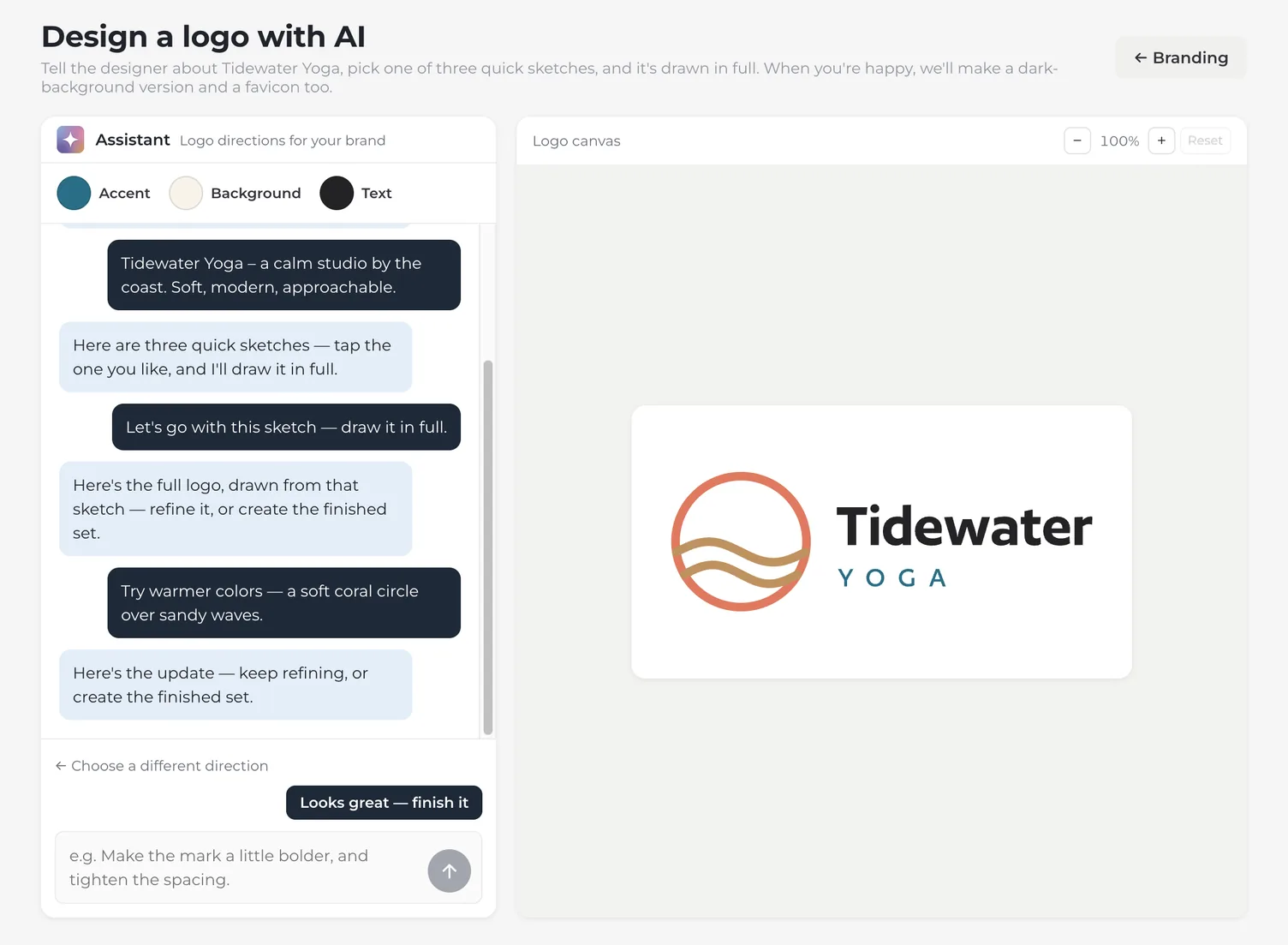
There's no limit on how many changes you ask for, beyond your AI credits — and going back to a sketch that's already been drawn in full costs nothing.
The dark version and favicon
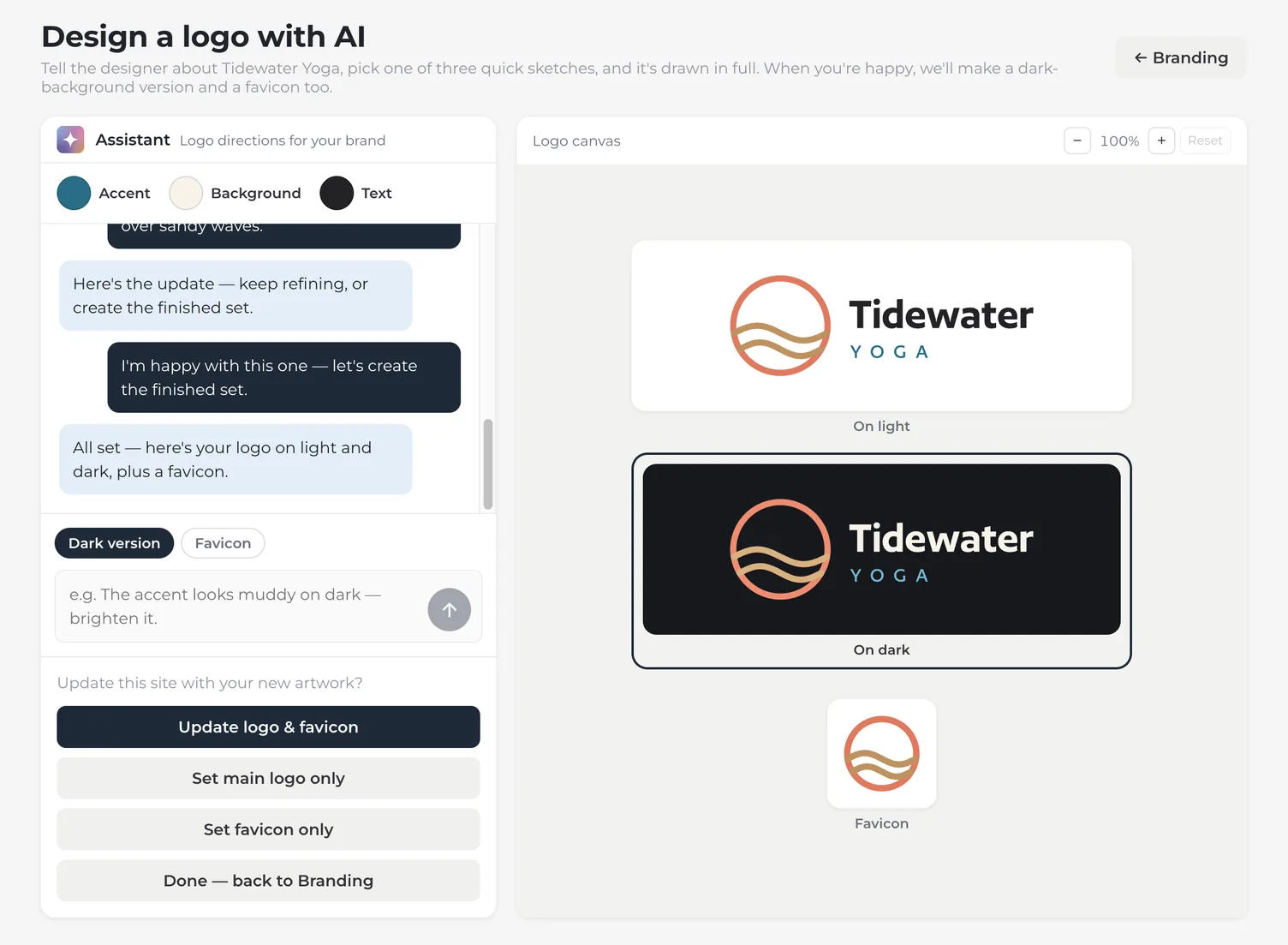
Finishing does two more pieces of work for you: a version of your logo made to sit on dark backgrounds, and a favicon — the small square that shows in a browser tab and in bookmarks.
The canvas then shows all three together: your logo on light, the dark version on dark, and the favicon.
- Not quite right? Use the Dark version and Favicon buttons above the message box to choose which piece you're changing, then describe the change as before.
- A favicon has to work at about the size of a period, so it's usually simpler than the full logo — a monogram, or the mark on its own. “Too busy at small sizes — just the monogram” is a fair thing to ask for.
Changes here use AI credits, like any other refinement.
Putting it on your site
Nothing on your site changes until you say so. When the set is finished, the buttons under the chat put it to work:
- Update logo & favicon — the usual choice. Sets your logo, its dark version, and the favicon all at once.
- Set main logo only — updates the logo and leaves your current favicon alone.
- Set favicon only — updates the tab icon and keeps the logo you already had.
- Done — back to Branding — changes nothing on the site and returns to the gallery. Your artwork is still there whenever you want it.
Your logos are used wherever your site shows its mark outside the editor — your shop, product, checkout, and order-tracking pages, the emails your site sends, and the payment page when someone buys from you. The favicon is the icon in the browser tab.
Your artwork gallery
Branding keeps everything the designer has made for this site — every option and every revision, not just the ones you kept. Each card shows the artwork, and whichever is in use is marked “Live”.
- Light logo, Dark logo, Favicon — the three buttons on each card assign that artwork to a slot, so you can change your site's logo at any time without designing a new one.
- Download — saves the artwork as a vector file to use anywhere off the site: signage, invoices, a printer's artwork request.
- Delete — removes the artwork for good. If it was assigned to a slot, that slot is emptied rather than left pointing at a missing file.
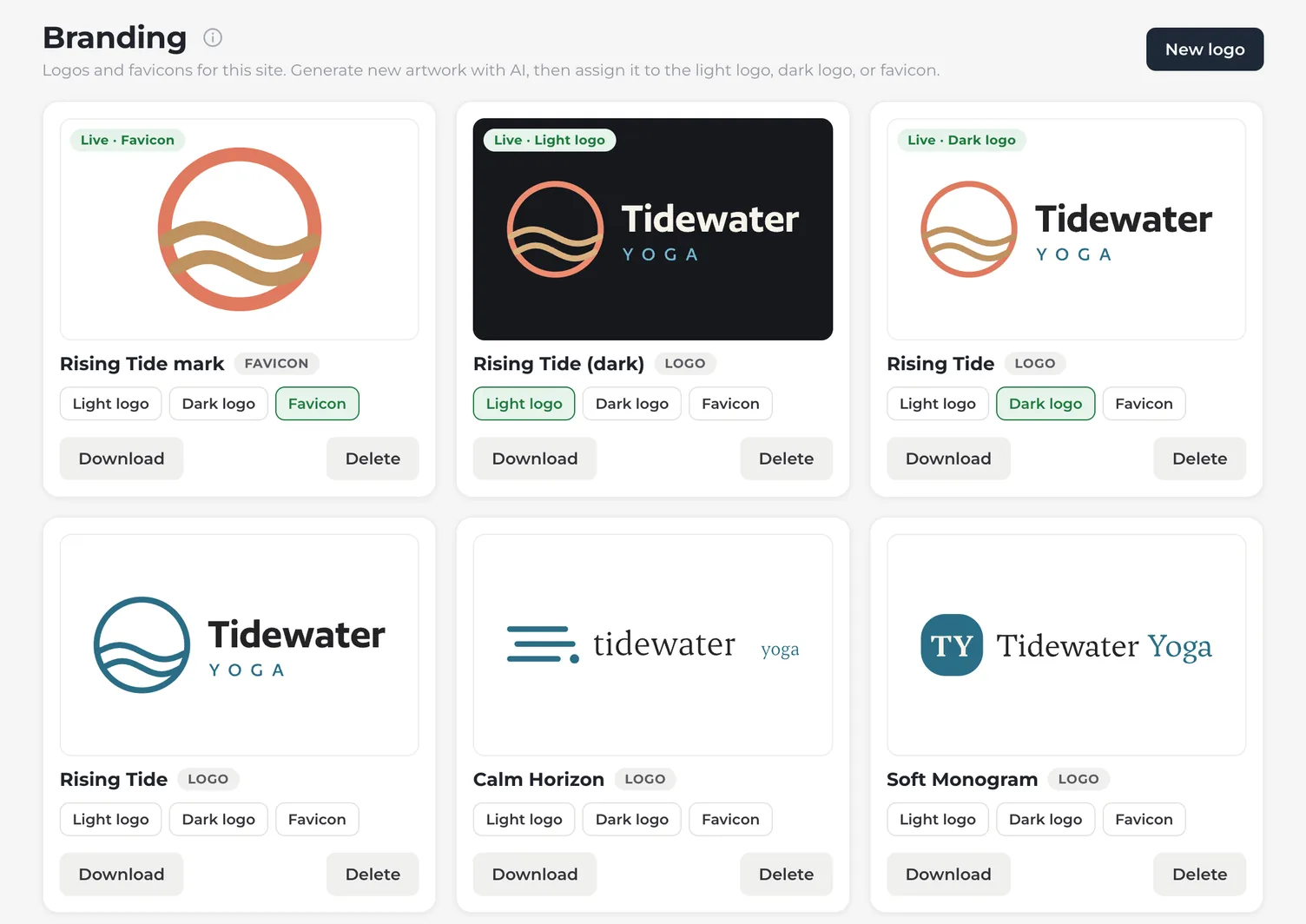
The two logo slots are named for the artwork, not the background — the easy one to get backwards. Light logo means light or white artwork, the one shown against dark backgrounds; dark logo is the other way around. Most sites want both, because themes swap between them depending on what sits behind the header.
What a logo costs
The logo designer uses your site's AI credits, like the website builder and editor. Each request costs what it takes: three quick sketches about 15 credits, drawing the one you pick in full about 25, a refinement about 15, and finishing the set about 30 — about 70 for a finished logo. A request that fails costs nothing.
- Free Trial — 600 AI credits in total, shared with every AI tool on the site.
- Paid plans — a monthly allowance that refreshes on the 1st: 1,000 credits on Starter, 1,500 on Store. You can buy more in packs of 1,000, 2,500 or 5,000 for $10, $25 or $50, and bought credits never expire.
There's no separate limit on how many logos you make. Each request needs a few dozen credits on hand to start, and the designer tells you if you're short. Usage shows how many credits you have left and what they went on.
Frequently asked questions
No. You describe your business in ordinary words and choose between the results — there's no design software, and nothing to draw yourself.
Three quick sketches take about 15 seconds, and drawing the one you pick in full usually takes under a minute. The chat shows each step as it happens, so you can see it working rather than waiting at a blank screen.
A vector — the same kind of file a designer would hand you. It stays sharp at any size, from a browser tab to a shop sign, and Download gives you the file to use off the site as well as on it.
Say what to change in the chat — warmer colors, a different typeface, a bolder mark — and the designer sketches three new directions. A round of sketches costs about 15 credits, about the same as one refinement, so trying another round is cheap.
No. Your site keeps the logo it has until you use one of the buttons at the end — and you can change your mind afterwards from the Branding gallery.
Yes. Upload it on the site's own settings page, under Brand & SEO. The logo designer is there for sites that don't have a mark yet — it isn't a requirement.
The designer tells you before a request starts if there aren't enough credits left for it, and how many it needs. On a paid plan you can buy more from Usage — they never expire — or wait for your allowance to refresh on the 1st. On the free Trial, choosing a plan gives the site its own monthly allowance.